
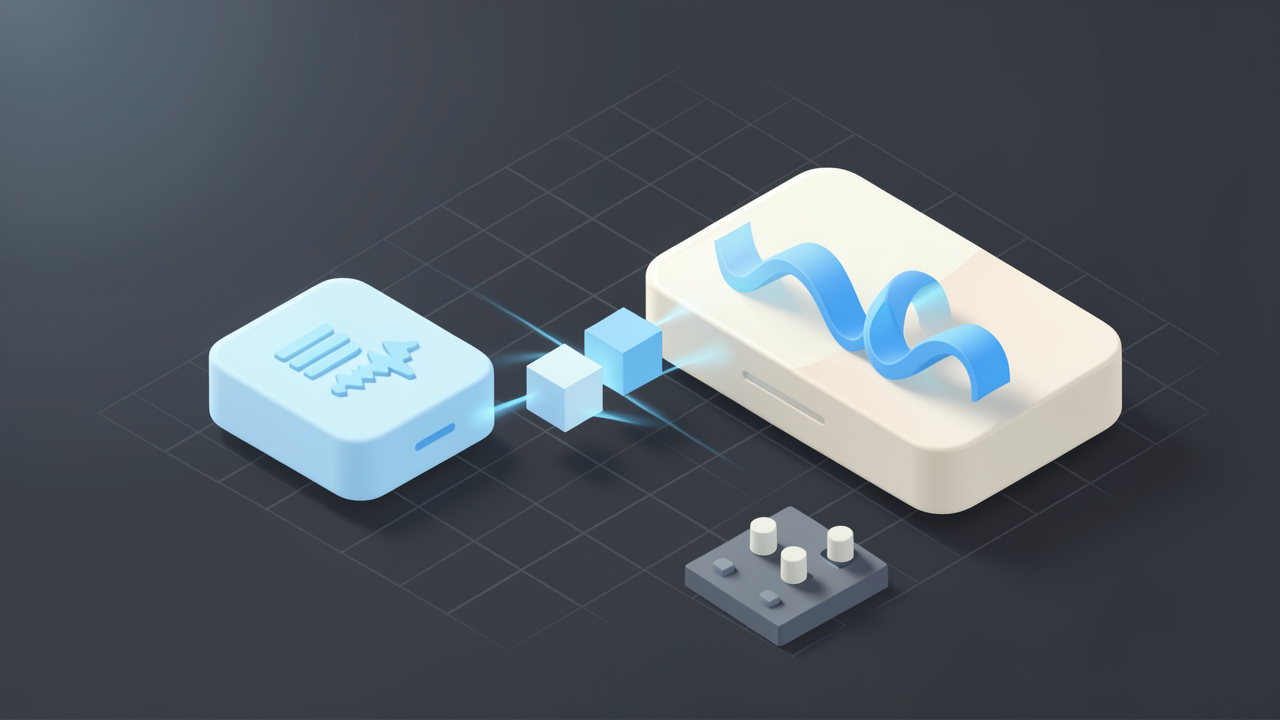
Converting MP3 to WAV sounds simple, but it often becomes confusing the moment audio quality, file size, compatibility, and editing needs enter the picture. Many people assume one format is just as good as the other, or that conversion somehow “restores” lost sound data. It does not. A little clarity saves time, storage, and frustration.
If you are a small business owner preparing podcast clips, a freelancer editing voice recordings, a developer handling media assets, or someone trying to make an audio file work in the right app, understanding MP3 to WAV conversion matters. The right choice depends on what you need the file to do next, not just on what sounds familiar.
What is MP3 to WAV?
At its core, MP3 to WAV means converting an audio file from the MP3 format into the WAV format. MP3 is a compressed audio format designed to reduce file size. WAV is typically an uncompressed audio format that preserves more raw audio data and is widely used in editing, production, and professional workflows.
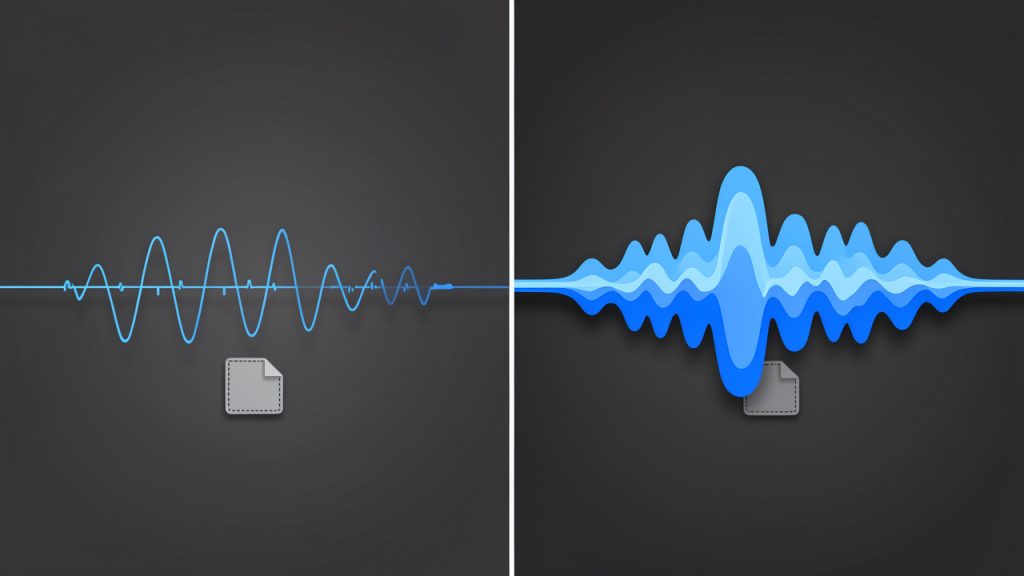
The key difference is not just the file extension, it is how the audio is stored. An MP3 removes parts of the sound data to make the file much smaller. This is called lossy compression. A WAV file, by contrast, usually stores audio in a much less compressed or uncompressed form, which makes it larger and easier for editing software, recording systems, and some hardware devices to process accurately.
This leads to an important point that many users miss. Converting an MP3 into WAV does not improve the original audio quality. If the MP3 already lost data during compression, that missing information does not magically come back when you save it as WAV. What conversion does do is make the file more suitable for certain tasks, especially where compatibility and editing stability matter.
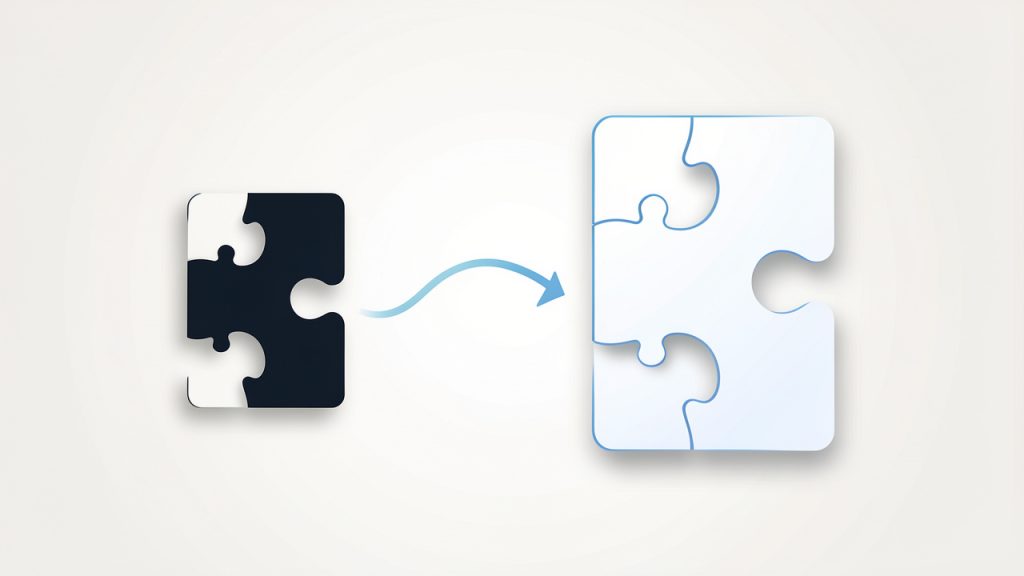
A simple way to think about it is this. MP3 is like a highly compressed image sent over messaging apps to save space, WAV is more like the original working file used in design software. Turning the compressed image back into a larger file does not recreate the missing detail, but it may make it easier to use in a professional workflow.
Key Aspects of MP3 to WAV
Why people convert MP3 to WAV
The most common reason for converting MP3 to WAV is workflow compatibility. Audio editors, video production tools, DAWs, transcription systems, and some broadcasting platforms often handle WAV files more predictably than MP3s. WAV files are simpler for software to decode because they usually do not rely on the same compression logic as MP3.
Another major reason is editing performance. When you edit audio repeatedly, cut sections, apply effects, normalize volume, or mix tracks, working with WAV can reduce the chance of introducing additional compression artifacts. Editors often prefer WAV because it gives them a more stable source format, even if the original audio began as MP3.
There is also the issue of device and platform requirements. Some systems, including legacy hardware, professional recording devices, call systems, and speech processing tools, specifically request WAV uploads. In those cases, the conversion is not about quality improvement, it is about meeting a technical requirement.
MP3 vs WAV at a glance
| Feature | MP3 | WAV |
|---|---|---|
| Compression type | Lossy | Usually uncompressed |
| File size | Small | Large |
| Audio quality | Reduced to save space | Higher retention of source audio |
| Best use case | Streaming, sharing, storage | Editing, production, archiving workflows |
| Compatibility in editors | Good, but sometimes less ideal | Excellent |
| Can conversion restore lost quality? | No | No |
This comparison highlights the practical trade-off. MP3 is efficient, WAV is flexible. One is built for convenience, the other for production.
Audio quality misconceptions
One of the biggest misconceptions around MP3 to WAV is the belief that WAV automatically means “better sound.” That is only true if the source audio was already high quality. If your original file is a 128 kbps MP3, converting it to WAV simply creates a much larger file that contains the same compressed audio quality.
That does not mean the conversion is pointless, it means the benefit is functional, not magical. For example, if you need to import voice audio into editing software, sync it with video, or deliver it to a platform that rejects MP3 uploads, WAV becomes useful even though it does not improve the sound itself.
A second misconception is that all WAV files are identical. In reality, WAV files can vary by sample rate, bit depth, and encoding settings. A 44.1 kHz, 16-bit WAV may be perfectly fine for music delivery, while 48 kHz, 24-bit is more common in video and production environments. Understanding those settings matters when precision is important.
File size and storage implications
Storage is where the difference becomes obvious fast. An MP3 might be only a few megabytes, while the same audio as WAV can be ten times larger or more. For a solo creator working on a few clips, that may not matter. For a business processing hundreds of recordings, it matters a lot.
Larger files take longer to upload, download, sync, and archive. If you convert everything by default without a reason, your storage bill and project clutter can grow unnecessarily. That is why MP3 to WAV should be intentional. Use WAV where editing, system compatibility, or delivery standards require it. Keep MP3 where portability and smaller files are the priority.
For teams and freelancers, this decision affects project management too. WAV files are better as working files, MP3 files are often better as sharing files. Knowing when to use each can keep both quality expectations and storage demands under control.
How to Get Started with MP3 to WAV
Start with your actual goal
Before converting any file, ask a practical question: Why do I need WAV? If the answer is “to improve quality,” you may not get the result you expect. If the answer is “my editor, client, software tool, or system requires WAV,” then the conversion makes sense.
This small mindset shift prevents wasted time. A lot of users convert files simply because WAV sounds more professional. Sometimes it is the right move. Sometimes it just creates larger files with no real benefit. The best workflow starts with the next step in your process, not the format name alone.
For example, if you are sending a podcast episode draft to a client for approval, MP3 is often enough. If you are importing spoken word tracks into audio editing software for cleanup and mastering, WAV is usually the better choice.
Choose the right conversion settings
When converting MP3 to WAV, pay attention to the export settings if the tool allows it. The most common options include sample rate and bit depth. These settings do not restore lost quality from the MP3, but they can affect compatibility with downstream tools.
For general use, 44.1 kHz, 16-bit WAV is a safe standard. For video production or professional post-production, 48 kHz is often preferred. If you are delivering files to a client or platform, use their required settings rather than guessing.
If your conversion tool offers “high quality” presets, be careful not to confuse that label with source recovery. A high-quality WAV export from a low-bitrate MP3 is still limited by the original MP3. The conversion can preserve what remains, but it cannot recreate what was removed during compression.
Use an online tool carefully
Online converters are popular because they are fast and convenient. For many users, especially those handling a few files at a time, an online MP3 to WAV tool is the easiest option. You upload the MP3, choose WAV, convert, and download.
That convenience comes with considerations. If your audio contains private interviews, client calls, unreleased media, legal recordings, or sensitive business material, be cautious. Not every free tool clearly explains how long files are stored or whether uploads are deleted after processing. For public or low-risk files, online conversion is usually fine. For confidential work, a trusted desktop app may be the safer route.
If you do use a browser-based tool, look for clear file limits, transparent privacy policies, and support for the output settings you need. Ease of use matters, but so does control.
A simple conversion workflow
- Upload your MP3 file to a trusted converter or open it in a desktop audio tool.
- Select WAV as the output format and review any settings like sample rate or bit depth.
- Convert and download the file, then test it in the app, editor, or system where you plan to use it.
That is enough for basic needs. What matters more is checking the output file in the real destination environment. A conversion is only successful if the new WAV file works where you need it.
Check the result before moving on
After converting, play the WAV file and verify a few basics. Make sure the audio starts and ends correctly, volume levels are consistent, and the file opens in your target software. If the file is for client work or production, confirm that the sample rate matches project requirements.
This verification step is often skipped, especially when converting in bulk. That can create avoidable problems later, such as sync issues in video timelines or rejected uploads on third-party systems. A quick check now can save a rework cycle later.
If you handle audio regularly, it is smart to create a repeatable mini-workflow. Use the same settings, naming conventions, and storage folders each time. That level of consistency helps freelancers, teams, and small businesses stay organized as media files pile up.
Conclusion
MP3 to WAV conversion is less about making audio sound better and more about making it usable in the right context. MP3 is great for compact storage and easy sharing, WAV is better for editing, production, and systems that require a less compressed format. The conversion has value, but only when it supports your actual workflow.
The next step is simple. Look at how you plan to use the file after conversion. If you need cleaner compatibility, easier editing, or a format accepted by professional tools, convert your MP3 to WAV with the right settings and verify the output. If not, keeping the file as MP3 may be the smarter and more efficient choice.
Leave a Reply